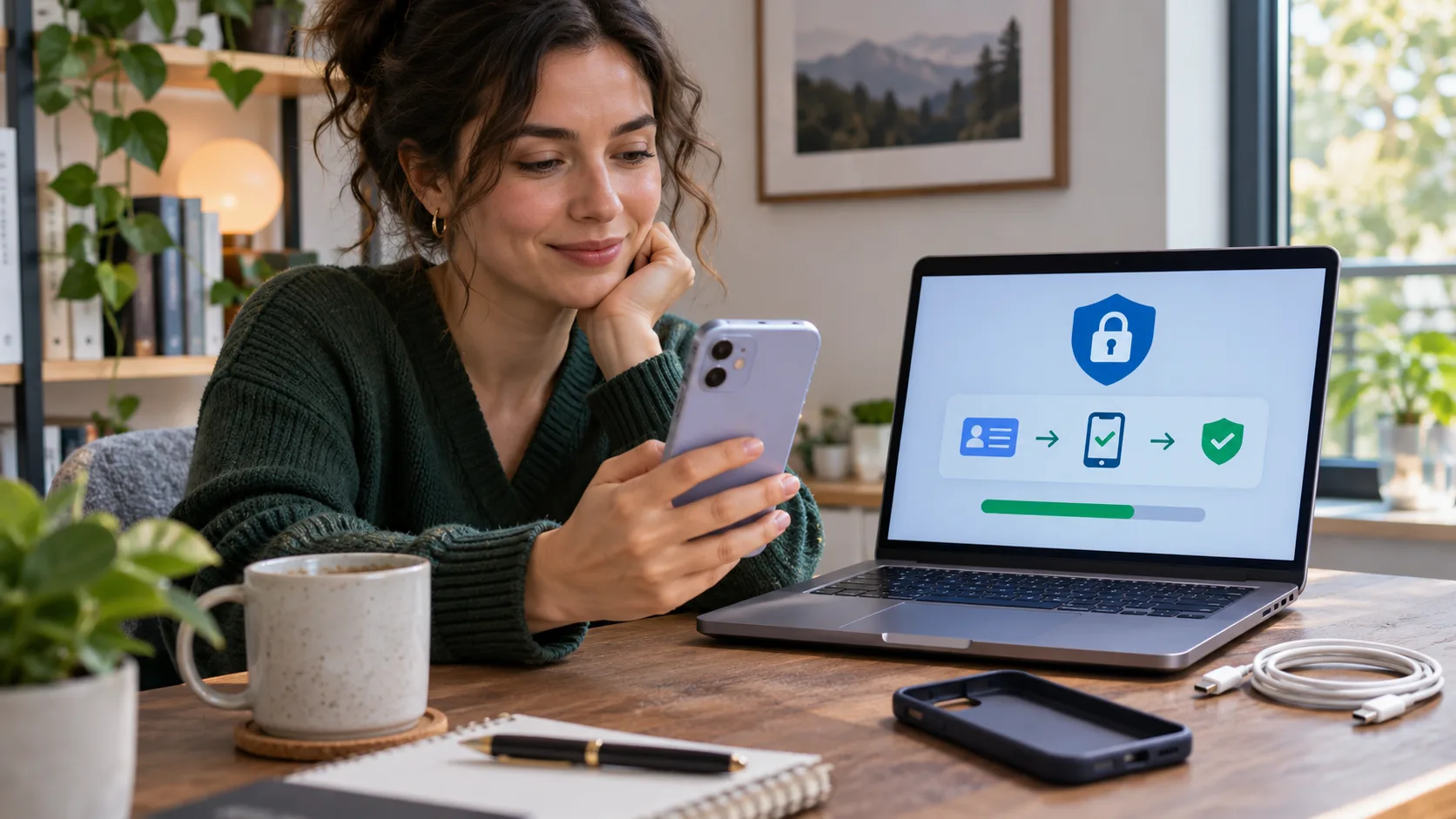
On the train home, I reached for my phone and found an empty pocket. The first thought was not about the device itself; it was the authenticator app inside it. “My work account and email both ask that phone to approve sign-ins,” I said. A colleague handed me a laptop, where one browser session was still open. That session was a useful doorway, but also something I could accidentally close by rushing through the wrong security prompt.
Preserve the trusted session before changing anything
If you are still signed in on a laptop, tablet, or another phone, do not sign out, clear browser data, reset the browser, or remove the device from the account yet. Those actions may end the session that gives you access to security settings. Open the provider’s official website or app directly and review the account’s enrolled factors and recovery contacts. Do not follow a recovery link from an advertisement, unsolicited text, or email when you can navigate to the service yourself.
First consider whether the remaining device is private and trustworthy. A public or shared computer is a poor place to enroll a new credential or display backup codes. Move to a device you control and a network you trust. If you suspect someone else has access to the session, check the provider’s official incident and recovery instructions before making changes. A real support agent should not ask you to read out a one-time code or hand over a recovery code.
| Your situation | Safer first step | Avoid |
|---|---|---|
| Another device remains signed in | Keep the session open and inspect security settings | Signing out or clearing cookies |
| You have a recovery code | Use it only on the provider’s real sign-in page | Sending it to anyone by chat or phone |
| The lost phone may be stolen | Secure the device, SIM, and active sessions | Replacing the app and stopping there |
| No session or backup method remains | Start the provider’s official recovery process | Paid “recovery agents” or bypass tools |
Enroll and test a replacement factor
If your trusted session can reach security settings, install an authenticator app on a replacement phone and enroll it through the service’s current instructions. Menu labels and supported methods vary by provider, so follow what the account page says today. Scan a setup QR code only when it is displayed by the real account settings page. Keep the enrollment screen private; a setup secret can let someone else generate valid codes for that account.
Installing the same authenticator app does not necessarily restore the old entries. Each service may bind its setup secret to that account, and an app backup may not include every service or may require a separate unlock key. After enrollment, use the provider’s offered confirmation step to prove the new factor works. Do not delete the old factor or close the remaining session until you have verified the replacement and have another way to recover access.
Some providers apply a security waiting period after changes to a recovery phone, passkey, or authenticator. Keep the trusted session available and follow the displayed instructions. Do not try to bypass the delay using unofficial support numbers or “temporary access” software. The wait can be part of a provider’s protection against a thief who has just taken over a device.
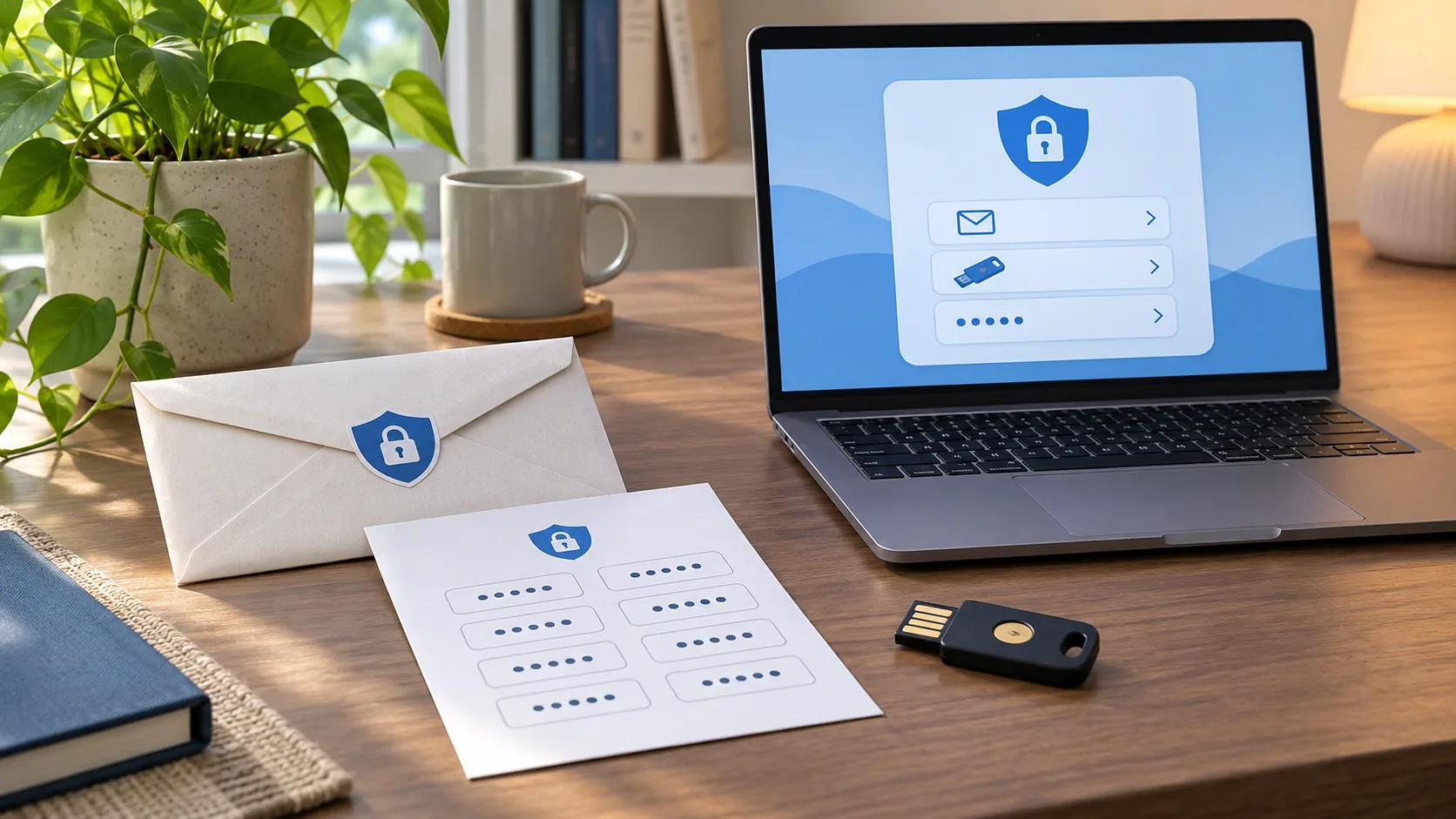
Set up at least one independent backup method if the provider supports it and you can manage it safely. Possibilities include a second authenticator device, a hardware security key, a passkey on another trusted device, or recovery codes. An SMS number may be convenient, but a phone number can be transferred, recycled, or targeted through a carrier account. It is better not to make text messages the only recovery route for an important account.
Store recovery codes and secure the missing phone
When you generate new recovery codes, read the provider’s note about whether they replace the previous set and whether each code works once. Save the new set in a password manager or a protected offline location that is separate from the phone. A screenshot in the phone’s camera roll is not an independent backup: losing the device loses both the authenticator and the codes. Avoid an unencrypted note, an email draft, or a chat with yourself. If you use paper, consider who can access it and how you would protect it from damage.
If the phone might be stolen, contact your carrier to protect the SIM or eSIM and use the device maker’s find, lock, or erase feature as appropriate. Check the device’s reported status and backup options before remote erasure, because wiping can remove data and may not be reversible. Start with accounts that can reset other accounts—especially the primary email—and review their recent security activity. If a phone number is at risk, do not assume the authenticator app is the only exposure; text-based password resets can also matter.
Once a replacement factor works, review active sessions and recent sign-ins from the provider’s security page. Revoke sessions or devices you do not recognize. Change the password if you suspect it was exposed, and inspect connected apps, app passwords, recovery email addresses, and phone numbers. A password change does not always revoke every app token or existing session, so use the provider’s specific sign-out or revoke controls when available.
If you recover the phone later, do not automatically remove the new factor and return to relying on the old one. Check that the device is locked, review account activity, and keep a tested backup method. Remove only credentials you have identified and no longer need.
It also helps to sort accounts by what they can unlock. Start with the primary email account, then accounts that control money, work access, cloud files, and public profiles. A lost authenticator can affect many services, but changing every password at once may create more lockouts than protection. For each important account, record whether you still have a signed-in device, an independent recovery route, and a way to contact the provider. Keep that inventory private; it should help you prioritize, not become a list of secrets.
For a work account, follow the organization’s help-desk process rather than registering a personal phone in a way that conflicts with policy. An administrator may need to revoke the missing device, issue a temporary sign-in method, or verify your identity through an approved channel. If you are the administrator, use another authorized administrator or the provider’s documented tenant recovery path. Do not ask a coworker to forward their own code. For family or shared accounts, coordinate changes with the actual account owner and confirm that the replacement method belongs to them.
After access is restored, do one calm end-to-end test: sign out of a secondary browser profile only after the new factor is known to work, then sign in again using the replacement and one backup route. If the service offers a list of one-time recovery codes, regenerate the set after any code has been used and mark the old copy unusable. A paper copy can be kept in a locked location; a password manager can be convenient if you already have a reliable way to unlock it from another device. The goal is not to collect every possible factor, but to avoid having all of them depend on one handset.
Finally, treat messages about the missing phone as untrusted until verified. A thief may trigger password reset messages or send a fake “found phone” notice that asks you to sign in. Open the provider yourself, inspect the account’s security page, and contact the carrier using the number on its official bill or website. If the device is returned, change the screen lock if someone may have learned it, check for unfamiliar apps or profiles, and only then decide whether to use it again for authentication.
Questions people ask
Will restoring my authenticator app restore every account code?
Not always. It depends on the app’s backup design and each service’s enrollment rules. Test important accounts individually; if a code is missing or rejected, use that provider’s official process to enroll a factor again.
What if I have no recovery codes and no signed-in device?
Use the provider’s official account recovery flow. A familiar device, location, or accurate account history may help the provider evaluate the request, but there is no safe shortcut around identity checks. Do not give a third party your password, one-time code, or remote access in exchange for a promise to restore the account.
I found the phone. Can I undo the security changes?
First check that the phone is in your control and review the account’s sign-in history. Keep the replacement factor if it is working. Remove old or unfamiliar credentials carefully, leaving at least one tested alternative so a later phone failure does not lock you out again.
At a glance
Keep a trusted sign-in session open while enrolling and testing a replacement factor through the real account settings.
Store fresh recovery codes separately, then secure the missing phone, its SIM, and active account sessions.